
pCloud is a popular cloud storage option, but many Mac users quickly realize that the experience depends on how you access it. Some people rely on the browser, others install the desktop app, and many want the storage to feel more connected to Finder.
The truth is that a few methods work very well on macOS, while others feel limited depending on your workflow. If your goal is a smooth pcloud mac setup, understanding these options makes everything easier.
How Mac Users Usually Access pCloud
Most users start with the simplest access method and then switch once they need something faster.
Browser Access
The web version of pCloud is useful for quick tasks, such as uploading a file, sharing a folder, or checking documents from another device.
However, browser access can feel slow when you are managing large folders or working with files daily. It also adds extra steps compared to Finder-based work.
Desktop Apps and Their Limits
pCloud offers desktop tools that create better integration than the browser, but they still have limitations.
Some apps focus on syncing folders, which works well for offline use, but syncing everything can take up storage. Other setups may not feel as direct as working with local folders in Finder.
Why Finder Access Matters on macOS
Finder is where most Mac users manage files every day, so cloud storage works best when it feels native.
Working With Files Like Local Data
When pCloud files appear inside Finder, you can browse and organize them naturally. It removes the sense that cloud storage is separate from your computer.
This is especially helpful if you work with documents constantly and want everything in one place.
Drag, Drop, and Edit Without Extra Steps
Finder access makes everyday actions simple. You can drag files into folders, rename content, or open documents directly without downloading and re-uploading manually.
This is the main reason many people want stronger Finder integration instead of relying on the browser.
Different Ways to Get pCloud Into Finder
There are two main approaches, and each fits a different kind of user.
Sync Folder Approach
Syncing downloads selected folders to your Mac and keeps them updated automatically. This is a good option if you need offline access or work with the same files every day.
The downside is that large sync folders can fill up disk space quickly.
Drive-Style Mounting
Mounting shows your cloud storage as a drive inside Finder without downloading everything.
Files remain in the cloud until you open them, which saves space and gives access to your full storage library.
Which Option Fits Which Use Case
Syncing is better when you need files available offline.
Mounting is better when you want access to everything without storing it all locally.
Many users combine both depending on their needs.
Mounting pCloud as a Drive on Mac
Mounting is one of the most convenient ways to make cloud storage feel native on macOS.
What “Mount as a Drive” Means in Simple Terms
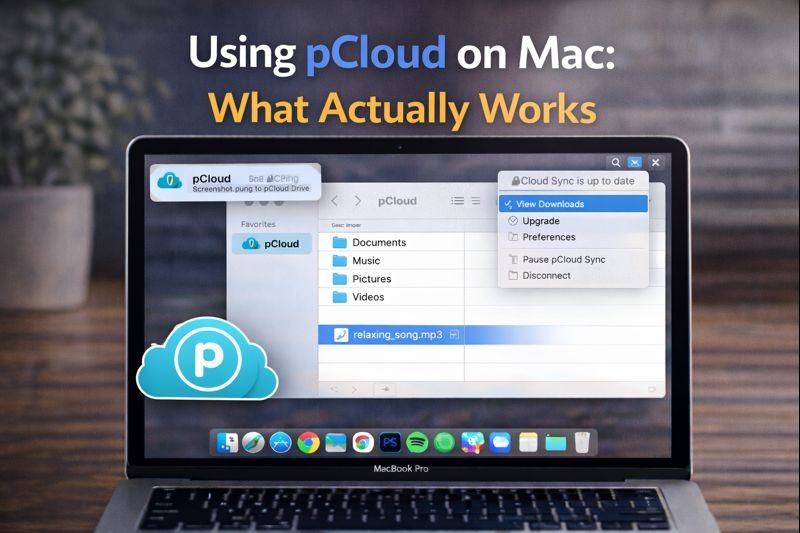
Mounting means pCloud appears in Finder like an external drive. You click it in the sidebar and browse cloud folders as if they were part of your Mac.
How pCloud Appears Once Mounted
Once mounted, pCloud is visible inside Finder and behaves like a storage location rather than a website.
This makes file access faster and reduces unnecessary downloading.
What You Can and Can’t Do With Mounted Storage
Mounted access is great for browsing and file management, but it relies on internet connectivity.
You can work with files normally, but offline access depends on whether files are downloaded locally or kept online-only.
Day-to-Day File Management With pCloud
Once pCloud is accessible through Finder, daily file handling becomes much smoother.
Uploading and Downloading Files
Uploads and downloads feel like simple copy actions. Dragging files into the mounted drive uploads them, and dragging files out downloads them.
This is easier than managing transfers through a browser dashboard.
Moving Files Between Cloud Services
Finder-based access also makes it simpler to move files between different cloud accounts, especially if you use more than one service.
Instead of downloading files first, you can transfer them directly between storage locations.
Handling Large Files on macOS
For large video files, project folders, or archives, mounting is often better than syncing. It avoids filling up your Mac’s storage while still giving access when needed.
Security Basics Mac Users Care About
Security is one of the first concerns when cloud storage becomes part of your daily workflow.
Account Login and Password Storage
Mac users should always use strong passwords and enable secure credential storage, such as macOS Keychain, when available.
This prevents passwords from being stored insecurely.
Encryption and File Privacy
pCloud supports encrypted transfers, and additional privacy features are available for users storing sensitive information.
When Extra Protection Makes Sense
Extra encryption is especially useful for business documents, personal records, or confidential client files.
If privacy is a priority, client-side encryption provides the strongest protection.
FAQs
Is pCloud safe on macOS?
Yes, pCloud is generally safe to use on macOS, especially when combined with strong account security and encryption features.
Do files stay on my Mac or in the cloud?
That depends on your setup. Synced folders stay on your Mac, while mounted drives keep files in the cloud until accessed.
Is mounting better than syncing?
Mounting is better for saving disk space and accessing everything. Syncing is better for offline work and folders you need constantly.
Conclusion
Using pCloud on a Mac works best when it fits into Finder, because Finder is where Mac users already manage everything.
Whether you choose syncing for offline availability or drive-style mounting for space-saving access, the right setup can make pcloud mac storage feel like a natural part of your daily workflow.